Navigating Your Amazon Vendor Login: A Quick Guide
Trying to get into your Amazon Vendor Central account can sometimes feel like a puzzle. This guide is here to make that whole vendor login Amazon process a lot simpler. We’ll walk through the basics of what Vendor Central is, how to manage your account dashboard, keep things secure, and what to do if you hit a snag. Plus, we’ll quickly compare it to Seller Central so you know where you stand.
Key Takeaways
Amazon Vendor Central is an invitation-only platform for brands selling directly to Amazon as a first-party seller.
Your Vendor Central dashboard is your command center for managing finances, purchase orders, invoices, and getting business advice.
Secure your vendor login Amazon access by using strong, unique passwords and enabling two-step verification.
Managing user access is important; add team members carefully and remove them promptly when they leave.
If you forget your password or have other login issues, Amazon provides a process to reset your credentials and get back into your account.
Unlocking Your Amazon Vendor Central Portal
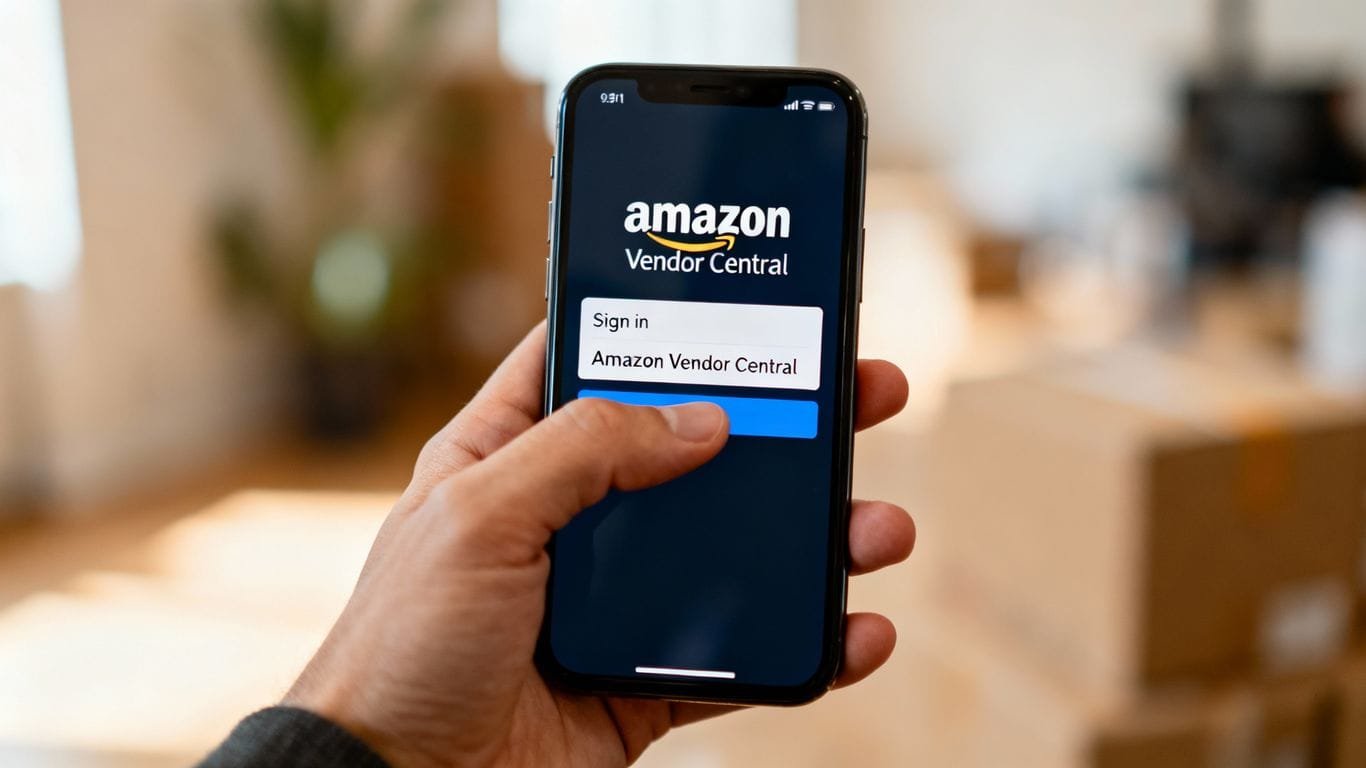
So, you’ve gotten the golden ticket – an invitation to Amazon Vendor Central. Think of it as Amazon rolling out the red carpet, inviting you to sell your products directly to them, like a wholesale VIP. They buy your stuff, then turn around and sell it to their massive customer base. It’s a pretty sweet deal if you’re looking to scale up without handling all the customer-facing heavy lifting yourself. This platform is generally reserved for established brands, so getting in means Amazon sees some serious potential in what you offer.
What Exactly Is Vendor Central?
At its core, Vendor Central is Amazon’s business-to-business playground. Instead of selling directly to shoppers (that’s Seller Central’s gig), you’re selling to Amazon itself. They become your primary customer, buying your products in bulk at wholesale prices. Then, Amazon takes over the reins, managing everything from inventory storage and customer service to shipping and marketing. Your products get that coveted “Sold by Amazon” badge, which, let’s be honest, carries a certain weight with shoppers.
The Mechanics of Selling Through Vendor Central
Getting your products from your warehouse to Amazon’s virtual shelves involves a few key steps. It’s a bit of a dance, really:
Purchase Order (PO) Arrival: Amazon sends you a PO, basically saying, “We want X amount of your product.” You’ll see these pop up in your Vendor Central account.
Fulfillment Fun: You then pack up those goods and ship them directly to Amazon’s designated fulfillment centers. Timing is everything here, so pay attention to the shipping windows.
Invoice Time: Once Amazon confirms they’ve received your shipment, you’ll generate an invoice through the platform.
Payment Processing: Amazon then processes your payment, usually within a set timeframe (think 30 to 90 days, depending on your agreement).
It’s a structured process, and sticking to the timelines is key to keeping Amazon happy and ensuring smooth operations. Missing a deadline can sometimes lead to penalties or delays.
Your First Steps into the Vendor World
Stepping into Vendor Central for the first time can feel a bit like entering a new city. Here’s a quick rundown to get you oriented:
Account Setup: You’ll need to provide all your business details, bank information, and tax IDs. Amazon will review everything to get your account fully operational.
Explore the Dashboard: Take a good look around. Familiarize yourself with where to find purchase orders, manage inventory, and check your sales reports. It’s your command center.
Understand Agreements: Read through any agreements Amazon presents. These outline the terms of your partnership, payment schedules, and other important details. Don’t just click ‘accept’ without understanding what you’re signing up for!
Set Up Users: If you have a team, figure out who needs access and what level of permission they should have. More on that later, but it’s good to think about early.
Mastering Your Vendor Central Account Dashboard
So, you’ve got your Amazon Vendor Central login sorted. Great! Now it’s time to actually use the thing. Think of your dashboard as the cockpit of your Amazon business. It’s where all the important stuff happens, from seeing how much money is coming your way to figuring out what Amazon actually wants from you next. It might look a little busy at first, but once you get the hang of it, it’s pretty straightforward.
Navigating the Financial Dashboard
This is probably the first place you’ll want to look. The Financial Dashboard gives you the big picture of your money situation with Amazon. You can see your total payables (what Amazon owes you), your receivables (what you owe Amazon, though less common for vendors), and your overall account balance. It’s a good spot to get a quick snapshot of your financial health. Below the main overview, you’ll often find quick links to other important financial pages, like where to handle invoices or dispute any weird charges. It’s like Amazon’s way of saying, “Here’s the money stuff, don’t mess it up.”
Understanding Purchase Orders and Invoices
This is where the rubber meets the road, or rather, where the products meet the warehouse. Amazon will send you Purchase Orders (POs) for the products they want to buy from you. You’ll need to fulfill these by shipping the goods to Amazon’s designated fulfillment centers. Once you’ve successfully shipped, you’ll generate an invoice through Vendor Central. This process is pretty structured:
Receive Purchase Order: Amazon tells you what they want and how much.
Fulfill Order: Pack up your goods and ship them to the specified Amazon warehouse.
Generate Invoice: Once shipping is confirmed, create your invoice within Vendor Central.
Payment: Amazon processes your invoice and pays you, usually within 30-90 days.
It’s important to keep an eye on these. Discrepancies can happen, and you’ll want to address them quickly. You can usually find options to dispute shortages or price differences right within the invoice section.
Keeping your financial documents organized and disputes handled promptly is key to a smooth relationship with Amazon. Don’t let those small issues snowball into bigger headaches.
Leveraging Business Advisor Insights
Beyond just the numbers, Vendor Central offers tools to help you improve your business. The Business Advisor section is designed to give you tips and recommendations based on your sales data and Amazon’s performance metrics. It might suggest ways to optimize your product listings, improve your inventory management, or even highlight opportunities for new product introductions. Think of it as a helpful (if sometimes blunt) consultant. While it’s not always perfect, paying attention to these insights can help you spot trends and make smarter decisions for your brand on Amazon. It’s a good place to check periodically, especially if you’re looking to grow your sales beyond just fulfilling orders. For a broader view of managing your Amazon presence, understanding Seller Central can also be beneficial, even as a vendor.
User Management and Access Control
Alright, let’s talk about who gets to play in your Amazon Vendor Central sandbox. It’s not just about you anymore; chances are, you’ve got a team, and they’ll need access too. Managing who can do what is pretty important, not just for efficiency but also for keeping things secure. Think of it like a digital key ring – you wouldn’t hand out master keys to everyone, right?
Adding New Team Members to Your Account
So, you’ve got a new hire, or maybe someone’s role has shifted. You need to get them set up in Vendor Central. It’s usually a straightforward process, but you’ll need to be logged in with an account that already has the authority to add users. Typically, you’ll head over to the ‘Settings’ section and look for something like ‘User Management’ or ‘Account Information’. From there, you should see an option to ‘Add User’ or ‘Invite User’. You’ll likely need their name and their Amazon-associated email address. Don’t just add anyone willy-nilly; make sure they actually need access.
Defining User Permission Levels
This is where you get to play gatekeeper. Amazon Vendor Central has different permission levels, and assigning the right one is key. You don’t want your intern accidentally approving a massive purchase order, do you? Generally, you’ll find roles like ‘Administrator’ (the big boss, can do almost anything), ‘Standard User’ (can manage orders, inventory, etc.), and maybe ‘Read-Only’ (can view data but not change it). It’s a good idea to map out who needs what level of access before you start assigning. A little planning here saves a lot of headaches later.
Here’s a rough idea of what different roles might entail:
Administrator: Full control. Can add/remove users, change settings, manage finances. Use sparingly!
Standard User: Can perform day-to-day tasks like managing purchase orders, submitting invoices, and updating product information.
Read-Only User: Can view reports and dashboards but cannot make any changes. Good for stakeholders who just need to see the numbers.
Removing Users When Necessary
People leave. It happens. When a team member departs, or their role no longer requires Vendor Central access, you need to remove them promptly. This isn’t just good housekeeping; it’s a security measure. Leaving old accounts active is like leaving a window unlocked. Again, you’ll usually find this option within the ‘User Management’ section. Find the user you want to remove, and there should be a clear ‘Remove’ or ‘Deactivate’ button. Make sure you confirm the removal. It’s a simple step that significantly tightens up your account’s security.
Keeping Your Vendor Login Secure
Alright, let’s talk about keeping your Amazon Vendor Central login locked down tighter than a drum. It’s not just about remembering a password; it’s about protecting your business from… well, from folks who shouldn’t be poking around.
The Power of Two-Step Verification
Think of two-step verification (or 2FA) as your account’s bouncer. It’s that extra step after you put in your password, usually a code sent to your phone or an authenticator app. It makes it way harder for someone to just waltz in, even if they somehow snagged your password. Seriously, enable this feature. It’s like putting a deadbolt on your digital front door.
Here’s the lowdown on getting it set up:
Find the Settings: Head over to the ‘Settings’ section in Vendor Central.
Look for Login Settings: You’ll find the option for ‘Two-Step Verification’ or something similar there.
Follow the Prompts: Amazon will guide you through linking your phone or setting up an authenticator app. It’s usually pretty straightforward.
Keep it Handy: Make sure the device you use for verification is always accessible when you need to log in.
Crafting Unbreakable Passwords
We’ve all been guilty of the ‘password123’ or using our pet’s name. But for your Vendor Central account? That’s a no-go. A strong password is your first line of defense. We’re talking a mix of uppercase and lowercase letters, numbers, and symbols. And please, for the love of all things digital, don’t use the same password everywhere. If one site gets breached, they all could be vulnerable.
Length Matters: Aim for at least 12 characters, but longer is generally better.
Mix It Up: Use a combination of
A-Z,a-z,0-9, and symbols like!@#$%^&*().Avoid the Obvious: Steer clear of personal information, common words, or sequential characters (like
12345orabcde).Change Them Periodically: While not as critical as having a strong, unique password, refreshing it every few months is a good habit.
A password manager can be your best friend here. It generates super-strong, unique passwords for all your accounts and remembers them for you. You just need to remember one strong password for the manager itself.
Maintaining Up-to-Date Contact Information
This might seem minor, but keeping your contact details current is super important, especially for account recovery. If you ever forget your password or something looks fishy, Amazon will need to reach you. If they can’t get hold of you because your email address is outdated or your phone number is disconnected, you could be locked out of your own account. It’s a bit like leaving a forwarding address at the post office – just good practice.
Check Your Email: Ensure the primary email address associated with your Vendor Central account is active and checked regularly.
Phone Number: Keep your current phone number on file for verification codes or important notifications.
Review Regularly: Make it a habit to check and update your contact information in the ‘Account Management’ section at least once a year, or whenever you change your details.
Troubleshooting Login and Account Issues
So, you’ve found yourself staring at a “Login Failed” message, or maybe your account seems to have gone on a little vacation without you. Don’t panic! It happens to the best of us. Think of it like trying to find your keys when you’re already running late – a bit frustrating, but usually fixable.
Resetting a Forgotten Password
Did your brain decide to take a break from remembering passwords? It’s okay. Amazon has a pretty straightforward way to get you back in.
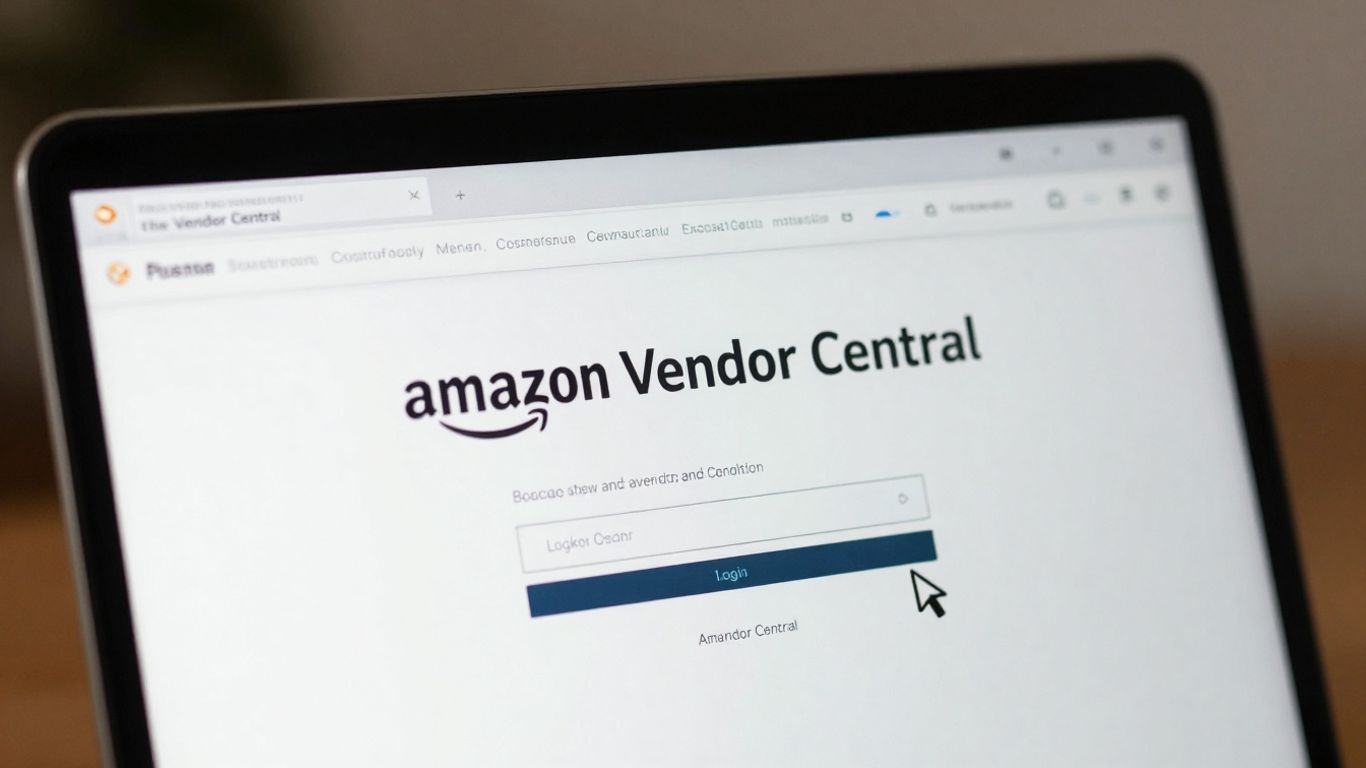
Head over to the Vendor Central sign-in page.
Look for the “Forgot your password?” link. It’s usually hiding in plain sight.
Pop in the email address associated with your account.
Amazon will send a temporary key to your inbox. Keep an eye out for it; it’s like a secret handshake to prove it’s really you.
This key is only good for 14 days, so don’t let it expire like a milk carton in the back of the fridge.
Use that key and create a new password. Make sure it’s a strong one that you haven’t used anywhere else.
When Your Login Credentials Go Awry
Sometimes, it’s not just a forgotten password. Maybe you typed it in wrong one too many times, or perhaps something else is acting up. Amazon’s system is designed to lock things down if it suspects something fishy, which is good for security but can be a pain when you’re just trying to get work done.
If you’re repeatedly getting locked out or seeing odd error messages, it might be time to check a few things:
Caps Lock: The classic culprit. Double-check if it’s on when it shouldn’t be.
Browser Issues: Sometimes, your browser can get a bit confused. Try clearing your cache and cookies, or even using a different browser for a bit.
Account Lockout: If you’ve had too many failed attempts, your account might be temporarily locked. You’ll usually need to wait a bit or go through the password reset process.
Remember, Amazon takes account security seriously. While it can be a hassle when you’re locked out, these measures are there to protect your business from unauthorized access. Patience and following the correct procedures are your best friends here.
Seeking Help for Access Problems
If you’ve tried everything and you’re still stuck in login limbo, it’s time to call in the cavalry. Amazon’s Support Hub is your go-to resource.
Resource Library: Browse through articles and guides. Often, the answer to your specific problem is already documented.
Case Management: If you can’t find a solution, open a support case. Be as detailed as possible about the issue you’re facing, including any error messages you’re seeing. This helps them help you faster.
Contacting Support: While direct phone numbers can be tricky to find, using the official support channels within Vendor Central is the most reliable way to get assistance. They can help sort out credential issues, account access problems, and other login-related headaches.
Vendor Central vs. Seller Central: A Quick Comparison
So, you’ve heard about Amazon’s two main platforms for selling: Vendor Central and Seller Central. It’s easy to get them mixed up, but they’re actually quite different beasts. Think of it like this: Vendor Central is like selling your stuff wholesale to a big department store, and Seller Central is like setting up your own shop within that store’s mall.
Who Sells to Whom?
The biggest difference boils down to who’s actually selling the product to the end customer. With Vendor Central, you’re selling your products directly to Amazon in bulk. Amazon then takes over, becoming the retailer and selling your items to shoppers. It’s a first-party relationship. On the flip side, Seller Central is a third-party platform. This means you’re selling directly to customers on Amazon’s marketplace, and you handle the customer relationship.
Access and Invitation Nuances
Getting into Vendor Central isn’t as simple as just signing up. It’s an invite-only club. Amazon typically extends invitations to brands that are already doing pretty well, showing consistent demand or a solid retail presence. They might reach out to you, or you might get noticed if you’re active in certain programs or attending industry events. Seller Central, however, is open to pretty much anyone with a product and an account. If you’re just starting out or want to test the waters, Seller Central is your go-to.
Choosing the Right Platform for Your Brand
Deciding between the two really depends on your business goals and how you want to operate. Here’s a quick breakdown:
Vendor Central might be for you if:
You want to offload inventory management and fulfillment to Amazon.
You’re aiming for high-volume wholesale sales.
You want to benefit from Amazon’s retail credibility and reach.
You’re okay with Amazon setting the final retail price.
Seller Central might be for you if:
You want more control over your pricing and brand presentation.
You prefer to manage your own inventory and customer service.
You want faster payment settlements.
You’re looking for direct interaction with your customers.
It’s worth noting that Amazon sets the retail price for products sold through Vendor Central. They use their own algorithms to stay competitive, which can sometimes lead to price erosion or undercutting other channels. This is a key factor to consider when planning your overall pricing strategy.
Ultimately, both platforms have their own set of advantages. Some brands even operate on both, using Vendor Central for bulk wholesale and Seller Central for direct-to-consumer sales. If you’re unsure which path is best, it might be worth consulting with an Amazon seller agency to help you figure out the optimal strategy for your brand.
Choosing between Vendor Central and Seller Central can be tricky. Vendor Central puts you in the role of a wholesaler, selling your products in bulk to Amazon. Seller Central, on the other hand, lets you manage your own inventory and sell directly to customers. Each has its own set of rules and benefits. To figure out which path is best for your business, check out our detailed guide on our website. We’re here to help you make the right choice!
Wrapping It Up
So there you have it. Logging into Amazon Vendor Central might seem like a simple task, but as we’ve seen, there’s a bit more to it than just remembering your password. Keeping your account secure, managing who can see what, and knowing where to find things are all part of the gig. Think of it like keeping your digital storefront tidy – a little effort goes a long way. Now, go forth and conquer that login screen, and maybe even impress your boss with your newfound portal prowess. Or at least, you know, get your orders processed without a hitch. That’s a win in my book.
Frequently Asked Questions
What’s the main difference between Vendor Central and Seller Central?
Think of it like this: with Vendor Central, you’re selling your products *to* Amazon, and they sell them to customers. It’s like being a wholesaler. With Seller Central, you’re selling your products *directly* to customers yourself, and Amazon just provides the online store and maybe helps with shipping. Vendor Central is usually by invitation only, while Seller Central is open to pretty much anyone.
How do I get invited to Vendor Central?
Amazon usually invites brands they want to work with directly. They look for established brands with a good track record and products they think will sell well. It’s not something you can just sign up for; you have to be chosen by Amazon.
What are purchase orders (POs) in Vendor Central?
When Amazon wants to buy products from you, they send you a Purchase Order, or PO. This is like an official order telling you what they want to buy, how much, and when they need it. You’ll use this PO to get your products ready to ship to Amazon.
How does payment work in Vendor Central?
After you ship your products to Amazon and they accept them, you send them an invoice. Amazon then pays you, but it usually takes a while – typically between 30 to 90 days. You can sometimes get paid faster if you offer Amazon a discount for early payment.
Is it hard to keep my Vendor Central account safe?
Keeping your account safe is super important! Amazon offers something called Two-Step Verification, which adds an extra layer of security when you log in, like needing a code from your phone. Also, make sure you use strong, unique passwords for your account and keep your contact information up-to-date so Amazon can reach you if needed.
What if I forget my password for Vendor Central?
No worries if you forget! There’s a ‘Forgot your password?’ link on the login page. You’ll need to enter your email address, and Amazon will send you a temporary key to your email. You use that key to create a new password. Just be sure to do it within 14 days, because the key expires!